
Introduction
At Anyone Home, customer engagement isn’t a small part of our business, it’s at the core of everything we do.
From troubleshooting basic service request issues, to the prioritization, digital delivery, and tracking of emergencies based on a property’s phone tree, Anyone Home property consultants are available to support your residents.
Let’s go over a few things to help you get started on the right foot.
Things to Know
Before reviewing how Anyone Home maintenance works, there are a few industry terms and processes unique to Anyone Home that need defining and review.
Please make sure to review this section before proceeding to the remainder of the document.
Definitions
▸ Emergency Service Requests: Service calls that require immediate attention from your maintenance team in accordance with your property’s policies and procedures.
▸ Emergency Service Requests are the only type of service calls that will result in the auto Dispatch process.
▸ Standard Service Requests: Non-Emergency service calls, where the issue at hand does not require immediate attention according to your property’s policies and procedures.
▸ During Hours (DH) Emergency: Emergency service calls that are called in during your property’s office hours
▸ After Hours (AH) Emergency: Emergency service calls that are called in outside of your property’s office hours
▸ Service Technicians: Commonly referred to as technicians; Those who respond on-site at your property to Standard and Emergency service requests
▸ In Anyone Home, ST-1 will be the first technician on the line in the case of an emergency, ST-2 will be the second technician and so on through ST-6, which is the last technician on call.
▸ Dispatch: The process of assigning a service technician to immediately handle a service request.
▸ Work Order Dispatch (WOD): Also known as a call tree, a Work Order Dispatch is a list of service technicians who may be called for a given maintenance request.
▸ Work Order Dispatches are distinguished by their Emergency or Standard (non-emergency) classification and whether a service request is dispatched to your During Hours or After Hours service technicians.
▸ Repeat Call: Service calls marked as repeat calls will not integrate into your Property Management Software as a new service request to avoid duplicate submissions, but an email notification will be sent.
▸ Manual Dispatch: If none of the service technicians answer or accept a call from the auto-dialer, the Anyone Home Contact Center will manually call each listed service technician and leave them a voicemail if they do not answer.
▸ The list of technicians called during a manual dispatch comes directly from the DH or AH Emergency WOD depending on when the call comes in.
▸ Forced Emergency: A service dispatch where a service request typically classified as Standard is manually dispatched as an Emergency.
▸ Examples of where this may occur include when the same resident calls with the same Standard request 7 times in 24 hours or less.
▸ Call Recording: A recording of the resident's service call, found on email and text receipts to the property/service technician.
▸ All inbound communications through the Anyone Home Contact Center are recorded. However, outbound communications (e.g., a service technician reaching out to the resident) are not recorded.
Important Notes
Inbound Call Routing
Depending on your property’s unique setup, there are three potential call routing types that can occur when a prospect calls one of these vanity numbers:
|
|
All incoming calls route to the Anyone Home Contact Center. The call will not be offered to your property agents. |
|
|
Any incoming calls missed by your property agents will be forwarded to Anyone Home. The call is offered to your property agents for 10 to 30 seconds before transferring to the Anyone Home Contact Center. |
|
|
During Hours: All incoming calls transfer to the property’s office line. After Hours: All incoming calls transfer to the Anyone Home Contact Center. |
|
|
Incoming calls route to your property’s office line or the Anyone Home Contact Center based on whether the service request is classified as Standard or Emergency. |
If your property management team uses Missed or After Hours maintenance calls, then your office hours listed in Anyone Home will be crucial to making sure calls accurately route either to your property’s onsite team or to the Anyone Home Contact Center.
For information on how to update your property’s office hours, please see the Update Office Hours section of this guide.
Outbound Call Dispatching
Rather than the Office Hours mentioned above, a separate set of hours is used to determine whether a maintenance call is dispatched to either your During Hours or After Hours call trees.
Property Office Number
The property office line should not be added to an After Hours Emergency WOD to ensure that, in the case of an Emergency, the phone does not ring at a closed office and prolong the dispatch.
Dispatch Process
Understanding the dispatch process will be key to the success of your service technicians. This is how your property will receive all standard and emergency service requests from Anyone Home.
Anyone Home Auto-Dialer
When there is an emergency on-site, Anyone Home will dispatch your on-call technicians to the scene of the issue. By following your on-site policies and procedures, we will only dispatch what your team considers an emergency using our auto-dialer.
When an emergency service request is dispatched to a service technician, they will receive a call from (678) 846- 2463. All service technicians should save this number to their Contacts. The call will include the following information:
▸ Repair Category
▸ Resident Name
▸ Permission to Enter
▸ Resident Address and Building/Unit number
Your service technicians will then have the option to:
▸ Press 1 to Accept: This option indicates that the service technician is claiming the service request and the auto-dialer will stop making calls to other technicians in rotation. Accepting will provide service technicians with the following options:
▸ Press 1 to connect to the resident.
▸ Note: The service technician’s phone number will not be visible to the resident during this call. Calls will come from (833) 290-2760.
▸ Press 2 to repeat the emergency details.
▸ Press 4 to repeat their options.
▸ Press 2 to Reject: This option indicates that the service technician does not claim the service request and the auto-dialer will begin immediately dialing to the next service technician on the call tree.
▸ If all the technicians on a call tree miss or reject the call, Anyone Home will attempt to manually dispatch the call to each service technician listed. This call will come from (949) 353-5963.
▸ Press 4 to Repeat Your Options: This option will repeat the auto-dialer options from the beginning of the script.
Email Notifications
Every service request handled by Anyone Home will be emailed to your property. If we are integrated with your property management software, service requests will be synced directly there as well. Emergency service requests will also be emailed to the service technician accepting the dispatch through the auto-dialer.
Emergency Dispatch Details include the summary and results of the Anyone Home Auto-Dialer. It includes information such as:
▸ The Emergency Dispatch ID unique to the emergency auto-dialer dispatch
▸ The Date and Time the auto-dialer began dialing out to technicians
▸ The Dispatch Results, which lists the technicians called with the order they were called in, what time each technician was called, whether the call was answered or not, and if the technician accepted or rejected the service request.
▸ Whether or not the call had to be Manual Dispatched to a technician, whether or not a technician accepted the service request, and any relevant notes from the Anyone Home property consultant.
Resident Information provides necessary information regarding the resident submitting the service request. Here Anyone Home clearly lays out:
▸ The resident’s Name
▸ The resident’s contact information provided during the call, including their
▸ Phone Number
▸ Mobile Number
▸ Email Address
▸ The location of the service request, provided via the Property name and Unit number.
Service Request Information provides the general details of the service call, such as:
▸ The Service Request ID unique to the resident’s service call.
▸ The Date/Time the resident called in.
▸ The Call Recording Link, which allows a property agent or technician to download the audio file associated with the service request to their computer.
▸ Whether or not the service request is a Repeat Call. This field should indicate to your technician that this call will not integrate as a new service request, and they should reference the existing service request email and ticket for notes.
▸ The During/After Hours Classification, which designates whether or not the call came in during your property’s office hours.
Service Request Details provides the specifics of the service request classification and permissions, including:
▸ The Service Type, which is the general maintenance category
▸ e.g., SR-Plumbing-Sink/Toilet/Disposal Broken or Not Draining
▸ The Sub-Type, which is the specific maintenance issue
▸ e.g., Plumbing Fixture, Bathtub, etc.
▸ The Room/Area Impacted, or the specific location in need of service.
▸ e.g., Master Bath, Community Laundry Facility, etc.
▸ Whether or not a technician has Permission to Enter the residence without the resident being present.
▸ The Entry Notes, which provides important details such as whether or not the unit has an alarm system in place or if there are pets on-site.
Service Request Notes provide the most detailed information regarding a resident’s specific service request. In this section, Anyone Home will take down as much information as possible from the resident regarding what the service issue is so that your technicians and on-site team have a clear understanding of the urgency and needs of the resident’s request.
SMS Message Dispatch Notifications
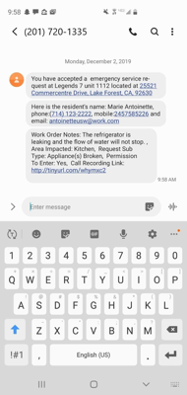
Service technicians will also receive a text message notification to their mobile number when accepting an emergency service request and an email if they have one listed on their profile. These messages will come from
(201) 720-1335. As with the auto-dialer number, all service technicians should save this number to their Contacts. If the emergency at hand was not accepted by a service technician, the text message will not be delivered to anyone. These messages include the same information provided over the phone, but in text form for your service technicians to review on-the-go. History of these SMS dispatch messages will appear in the Communication section of the Service Request Activity section in Anyone Home.
Anyone Home Access
No two users are the same, so it’s essential that you take a few minutes to set up your Anyone Home Account. First, log into your Anyone Home account by going to https://app.anyonehome.com . You can also visit our company website at http://www.anyonehome.com/ and click the Sign In option in the top right corner. Use the account information provided to you via email to access your account or use Single Sign-On (SSO) with Gmail, Outlook, or Office 365. If you use a Single Sign-On provider such as Okta or Azure Marketplace, you can install the Anyone Home CRM App to log into Anyone Home through your SSO portal.
Next, review your user settings by selecting the dropdown arrow next to your name and clicking Preferences.
In the Password tab, make sure you select a password that is difficult for others to guess, but easy for you. We recommend using a mix of uppercase and lowercase letters, numbers, and symbols. But remember that the longer your password is, the more secure it is!
In Communication, let us know what the best phone or mobile number is to reach you. Don’t forget to specify your current Time Zone so we can display times in your local time zone instead of the default, Pacific Standard Time.
Service Requests
The Service Request dashboard provides users with an overview of All Service Requests for their properties. Service requests can be sorted via the Filter button in the top left of your dashboard, which gives you the option to view service requests by their Property, Open or Closed Status, Service Type, Creation Date, and Urgency Status.
Clicking on a service request will provide you with further Service Request Details and Resident Info. Much of the information that appears mirrors the email notification associated with the service request. Under Service
Request Activity, users can view a list or timeline view of all actions associated with the service request, as well as a log of all SMS communications sent to the service technician that accepted the service call.
Dispatch Settings
The Trees tab displays the different Work Order Dispatches associated to the user's property. If a user is associated with multiple properties, they can use the Show Filters button to narrow down their search.
Clicking on a Work Order Dispatch allows you to see the Service Request Activity and to upload additional information, such as the number of call attempts per service technician and the work order dispatch’s email distribution list. ST-1 is the first technician on the line in the case of an Emergency, ST-2 is the second technician, and so on.
The Technicians tab provides a searchable log of service technicians associated with your property management company, where you can view/edit their contact information and/or adjust the Active or Inactive Status.
Add/Adjust Service Technicians
How To
Add/Adjust Service Technicians
To create a new service technician or to update a technician’s information, start by hovering your mouse over Service Request on the left navigation bar and selecting Dispatch Setting.
Creating Service Technicians
In the Trees section, click into any Work Order Dispatch. Creating a technician on a Work Order Dispatch will not automatically add it to the list of available technicians.
Once you’re directly in one of the Work Order dispatches, click Edit. On the right you will notice Add New Service Technician appears in green, click this button.
Fill in the new technician’s contact information. If any of the information you enter is close or matches an existing service technician, the existing agent and their information will appear at the bottom of the screen.
If the technician you are creating is not a duplicate of this existing agent, complete each field and click Save.
Updating Technician Information
In the Technicians section, locate the technician you’d like to modify. You can do so via visual check, or by using the search bar located directly above the list of technicians.
Review the technician’s phone number, mobile number, or email address. Existing information will be underlined with a blue dotted line. If the field is empty for that technician, the field will say Empty in red.
Click the field you’d like to modify and type in the new information. Then click the Green Check Mark.
To make an active technician inactive or visa-versa, click on the status in the far-right column and use the dropdown menu to select the new status.
Update Dispatch Settings
Using the left navigation bar, hover your mouse over Service Request on the left navigation bar and selecting
Dispatch Setting.
In the Trees section, use the Group, Property, or Service Technician filter to locate the Work Order Dispatches you want to update.
To replace an existing technician, click the name of the technician that you will be replacing and select the new technician from the drop-down list. To save this change, click the Green Check Mark.
Call Trees can also be updated by navigating directly to the Work Order Dispatch’s detailed page.
Click on the Work Order Dispatch and then press the Edit button at the top of the following page. Then simply click on the SR Technician field you wish to update, select the name of the service technician from the dropdown menu, and click the Green Check Mark.
To update who receives email receipts regarding all service requests that fall under the Work Order Dispatch, enter all relevant email addresses into the CC Email, CC 2 Email, and/or CC 3 Email fields.
To update the number of minutes that the auto-dialer will wait before calling a technician again, use the Minutes Between Phone Tree Contacts field.
To update the number of times each technician will be called by the auto-dialer, use the Number of Attempts Per Contact field.
To review changes made to the Work Order Dispatch, scroll down to the Service Request Activity section and use either the List or Timeline view options to see any recent updates. The Communication option will display all SMS dispatch communications sent to the work order's associated service technicians.
Update Office Hours
If you do not use Anyone Home for any of our Prospect Engagement Solutions, you will need to reach out to Anyone Home Support to adjust your office hours. However, if you do have access to edit your property’s office hours inside Anyone Home, you can do so by completing the following steps.
To begin, click on Properties on the left navigation bar and navigate to the property you'd like to adjust hours for. If you are only assigned to one property you will be taken directly into your property of interest.
At the top of the page, click on the Edit button next to the property name. From the Property Info tab, click on the General Info tab.
Under Property Details will be the Hours section.
The From and To timeslots will be underlined in a dotted line. Adjust the desired hours by clicking on the time and using the drop-down menu.
Then click the green check mark next to the timeslot.
Then click Save Changes at the top of the page where Edit was once displayed.
Service Outages
A Service Outage is a notification that provides Anyone Home with instructions on how to temporarily manage service requests pertaining to an ongoing issue on-site.
If the issue that the site is experiencing is normally considered an Emergency, you will want to let Anyone Home know how to handle this type of service request if a service call comes in with the same request type during the time they are working to resolve the issue.
For example, if the property is experiencing an Electrical Outage, to cut back on the number of Emergency calls for an Electrical Outage and to give your service technicians time to resolve the issue at hand, we suggest adding a Service Outage to the system that will inform our team how to proceed with this specific request type during this scenario at hand.
If there is an ongoing issue spanning multiple properties, you will need to input separate Service Outages for each affected property.
Adding a Service Outage
Click on Properties on the left navigation bar and navigate to the property you'd like to adjust hours for. If you are only assigned to one property you will be taken directly into your property of interest.
Once you select the property that needs an Outage, navigate into Property Settings and click on the Property Settings tab.
First click on Properties using the left navigation bar.
Scroll down until you locate the section titled Service Outage Settings. To indicate a new Service Outage, click the
Add button.
Using the Type dropdown menu, select the service issue that best describes the outage occurring at the property (e.g., No Electricity, No Gas, Flooding, etc.).
In the Message field, provide notes or instructions to the Anyone Home Team that will inform them how to handle the request during this specific scenario.
Then click Save. The message “Service Outage Setting added successfully.” will display if the Service Outage was created.
To update the instructions on a Service Outage, click the pencil icon and save any changes you make. Once the outage is over, remove the Service Outage by clicking the trash icon.
Reporting and Review
Service Request Reports
Our bi-directional integration allows for complete customization of reporting. Whether you are looking to see how often service requests are coming in, comparing the amount of Standard and Emergency calls for your property, or checking the distribution of service requests among your service technicians, our reporting portal will allow you to gain insight into how well your property is doing.
Here is a brief summary of the reporting available to you and your team through the Anyone Home platform:
▸ Call Details Report: Breaking down the number of calls received by the day or by the hour, this report also gives you insight into who handled the call, how long the call lasted, and the property's response to the call.
▸ Service Request Summary: Giving you the difference between the number of emergencies requests versus the number of standard requests processed through Anyone Home, and more specifically the percentage of request types that have been processed by Anyone Home within each category.
▸ Service Request Details: Whether you are looking to see how many service requests were processed by day or at the property in general, you will have more insight into the total service requests processed along with the information gathered during each service interaction.
▸ Emergency Dispatches: The Percentage of who is accepting the Emergencies processed for the property along with all of the dispatch details.
Call Recordings
As long as your calls are not routing through a third-party like RentCafe first, all inbound calls to Anyone Home sources are recorded, regardless of whether the call is handled by the Anyone Home Contact Center or your property management team. There are three ways to access call recordings generated by Anyone Home:
▸ Dispatch emails and dispatch text messages via a Call Recording Link
▸ Service Request pages via a Download Call Recording button
▸ Reporting via the Call Details report
To pull a report of available call recordings, click on the Reports tab using the left navigation bar. Use the Report dropdown menu to select the Call Details report. Scroll down to the report summary to locate the service call you’d like to listen to, using the search bar as needed. In the Download Call column, click on the download icon to download the call recording to your computer. Once downloaded, your call recording is ready to review!
Voicemails
Hovering over Messages in the left navigation bar, select the Voicemail option from the dropdown menu. When looking at a voicemail in any folder, you can view the respective service request by clicking View Lead.
Much like popular mail service inboxes, your Inbox will reflect all inbound voicemails.
Moving into the Not Downloaded tab will allow you to view only the voicemails that have not been downloaded or archived within Anyone Home.
The Downloaded section allows you to view any voicemail that you’ve clicked Download/Listen on. You will see all downloaded voicemails in this section.
The Archived section allows you to pin important voicemails that have not been downloaded to your computer or phone hard drive or within Anyone Home.
Anyone Home will only host and display a voicemail within your Anyone Home account for 45 days, regardless of if they’ve been downloaded or archived. When downloading a voicemail, be sure to remember where you have saved the recording within your computer or phone hard drive in order to listen to it outside of the 45-day expiration date. After the voicemail has been processed, Anyone Home will email a copy of the voicemail to the property and up to 3 other additional recipients if requested.
Quality Assurance
Anyone Home’s Quality Assurance team is here to ensure that we are providing the best level of service to you and your residents. Their focus is to ensure that our team is doing their best, always. The Quality Assurance team conducts extensive call quality testing for each employee every week to ensure that our team is providing accurate information, documenting information appropriately, and following fair housing rules and guidelines.
If you come across a call that doesn’t meet our standards or you would like to provide us with some feedback, please submit it to our Support team.
Need More Help?
Anyone Home Maintenance is a powerful tool for property management companies, but there is much more to learn about it outside of this guide. If you have any questions or would like to provide feedback, please visit the Help section inside Anyone Home platform.
If you’re in need of immediate assistance, the Anyone Home Support team can be reached at 1-888-913-3913 ext. 2 Monday through Friday from 7AM - 5PM PST.
Comments
0 comments
Article is closed for comments.